- Open CMD
- Now simply type netsh wlan show profile on the screen of command prompt. This command will display you a complete list of WiFi network were ever connected to via that PC.
- type netsh wlan show profile name=profilename key=clear.
8.12.17
How To Find WiFi Password On Windows 10:

2.8.17
Shared Folders and the Windows Firewall - Ports
Sharing a folder or file creates a Windows Firewall exception for File and Printer Sharing. The exception opens the ports listed in the following table.
| Connection | Ports |
|---|---|
TCP
|
139, 445
|
UDP
|
137, 138
|
4.7.17
Fixing Windows Can't access Error Code 0x800704cf
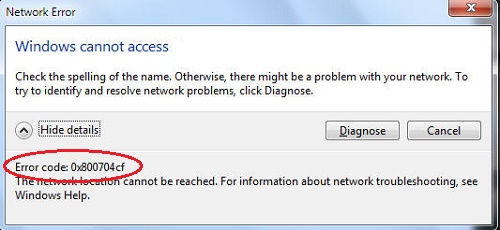
To
fix 0x800704cf error on your system, you simply need to uncheck the
Client for Microsoft network Option. Which in many case have solved the
error code problem for many users. Lets see how it is done.
Step 1: Right Click on Network icon from taskbar and click on "Open Network and sharing center." Alternatively, you can even search your PC for Open Network and Sharing Center.
Step 2: Once the Windows opens up, Click on Change Adapter settings from the left pane.
Step 3: A new dialog box should appear in front of you with all Network Connections, Right click on your Network Adaptor (Wi-Fi) and select Properties.
Step 4: Properties dialog will show up. Now Uncheck very first option which should be Client for Microsot Network and click OK.
Once all steps are done, Go and Check if you still get error code 0x800704cf or not.
Step 1: Right Click on Network icon from taskbar and click on "Open Network and sharing center." Alternatively, you can even search your PC for Open Network and Sharing Center.
Step 2: Once the Windows opens up, Click on Change Adapter settings from the left pane.
Step 3: A new dialog box should appear in front of you with all Network Connections, Right click on your Network Adaptor (Wi-Fi) and select Properties.
Step 4: Properties dialog will show up. Now Uncheck very first option which should be Client for Microsot Network and click OK.
Once all steps are done, Go and Check if you still get error code 0x800704cf or not.
To fix 0x800704cf error on your system, you simply need to uncheck the Client for Microsoft network Option. Which in many case have solved the error code problem for many users. Lets see how it is done.
Step 1: Right Click on Network icon from taskbar and click on "Open Network and sharing center." Alternatively, you can even search your PC for Open Network and Sharing Center.
Step 2: Once the Windows opens up, Click on Change Adapter settings from the left pane.
Step 3: A new dialog box should appear in front of you with all Network Connections, Right click on your Network Adaptor (Wi-Fi) and select Properties.
Step 4: Properties dialog will show up. Now Uncheck very first option which should be Client for Microsot Network and click OK.
Once all steps are done, Go and Check if you still get error code 0x800704cf or not.
Step 1: Right Click on Network icon from taskbar and click on "Open Network and sharing center." Alternatively, you can even search your PC for Open Network and Sharing Center.
Step 2: Once the Windows opens up, Click on Change Adapter settings from the left pane.
Step 3: A new dialog box should appear in front of you with all Network Connections, Right click on your Network Adaptor (Wi-Fi) and select Properties.
Step 4: Properties dialog will show up. Now Uncheck very first option which should be Client for Microsot Network and click OK.
Once all steps are done, Go and Check if you still get error code 0x800704cf or not.
To
fix 0x800704cf error on your system, you simply need to uncheck the
Client for Microsoft network Option. Which in many case have solved the
error code problem for many users. Lets see how it is done.
Step 1: Right Click on Network icon from taskbar and click on "Open Network and sharing center." Alternatively, you can even search your PC for Open Network and Sharing Center.
Step 2: Once the Windows opens up, Click on Change Adapter settings from the left pane.
Step 3: A new dialog box should appear in front of you with all Network Connections, Right click on your Network Adaptor (Wi-Fi) and select Properties.
Step 4: Properties dialog will show up. Now Uncheck very first option which should be Client for Microsot Network and click OK.
Once all steps are done, Go and Check if you still get error code 0x800704cf or not.
Step 1: Right Click on Network icon from taskbar and click on "Open Network and sharing center." Alternatively, you can even search your PC for Open Network and Sharing Center.
Step 2: Once the Windows opens up, Click on Change Adapter settings from the left pane.
Step 3: A new dialog box should appear in front of you with all Network Connections, Right click on your Network Adaptor (Wi-Fi) and select Properties.
Step 4: Properties dialog will show up. Now Uncheck very first option which should be Client for Microsot Network and click OK.
Once all steps are done, Go and Check if you still get error code 0x800704cf or not.
Subscribe to:
Posts (Atom)