1. Type
regedit in RUN or start menu searchbox and press Enter. It'll open
Registry Editor.
2. Now go to the desired registry key, right-click on it and select "
Permissions..." option.
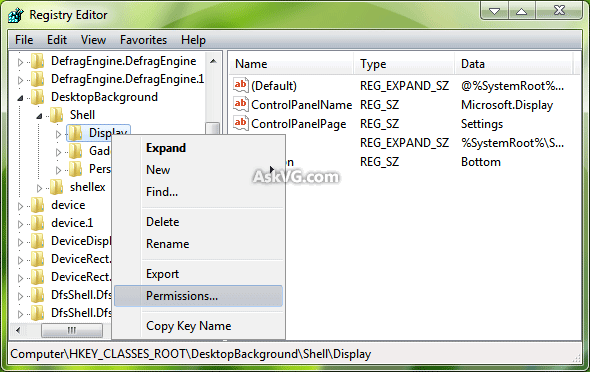 3.
3. It'll open a new dialog box. Click on "
Advanced" button.

For Windows XP, Vista and Windows 7:
Go to "
Owner" tab, select your username and click on
Apply button. If you also want to take ownership of the sub-key, enable the option "Replace owner on subcontainers and objects".
 PS:
PS: If you want to get permission on all sub-keys, enable following 2 options in "
Permissions" tab:
- Include inheritable permissions from this object's parent
- Replace all child object permissions with inheritable permissions from this object
If you are not a Windows 8 or later OS user, jump to Step 4.
For Windows 8/8.1, Windows 10 and later:
Click on "
Change" button near "TrustedInstaller" as shown in following image:

It'll open new dialog box. Now type your username and click on "
Check Names" button. It'll automatically convert the username to correct format.

Now click on OK button.
4. Now select your username in first dialog box and check the "
Allow" checkbox given for "
Full Control" option.
 5.
5. That's it. Click on Apply and OK buttons and you'll now have full permission on the registry key.


